Remote Desktop
The screen is Modern only. With Wi-Fi up, the Tab5 serves its own screen. Open its address in a browser on the same network and you get the live picture, and your PC's keyboard and mouse drive the real hardware.
This is the fastest way to work on the device: type on a full-size keyboard, watch the actual machine run, and take screenshots without pointing a camera at a panel.
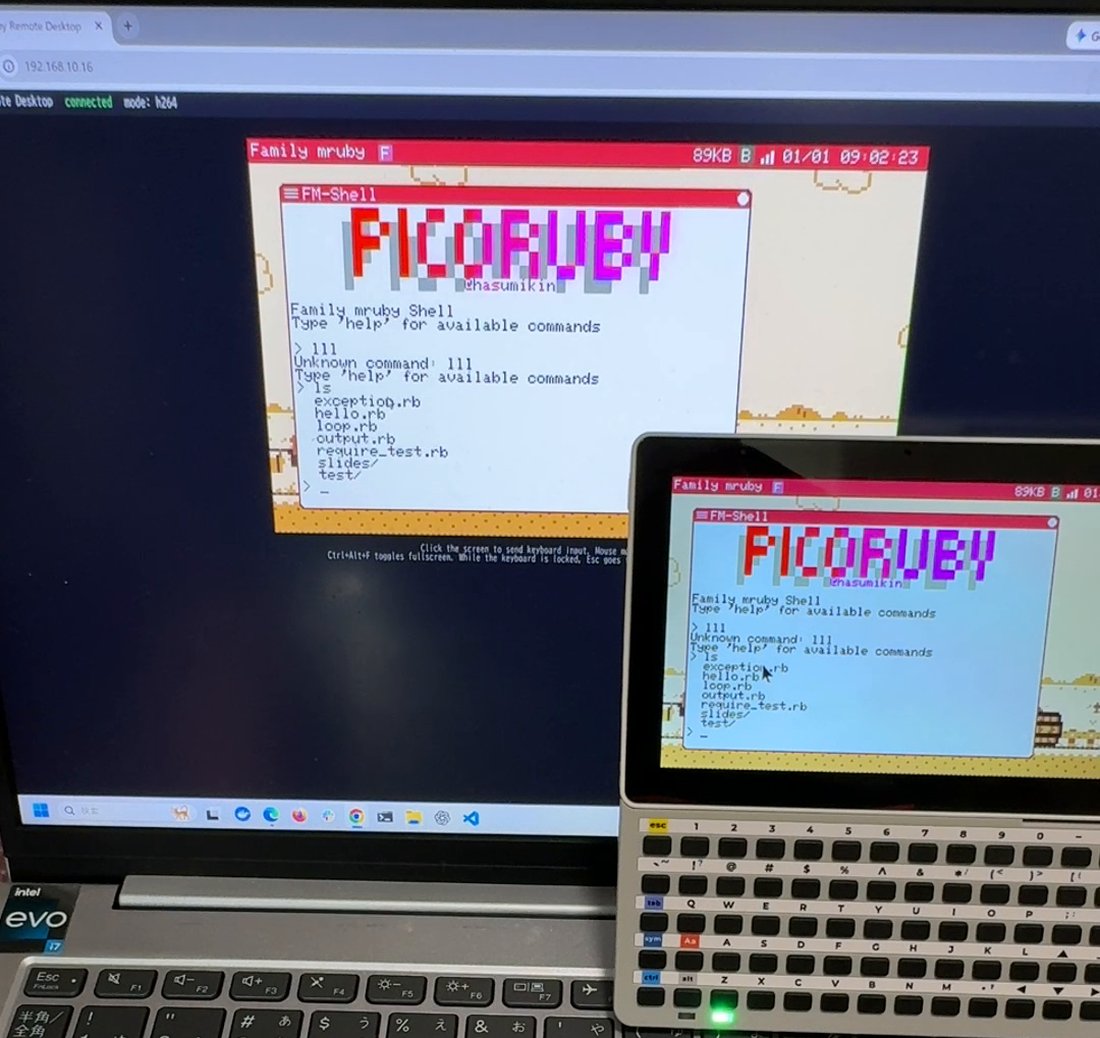
The browser and the device, the same frame. The status line reads
connected · mode: h264
Using it
- Get Wi-Fi working first — see Connecting to Wi-Fi
- Open the system menu → Network to confirm the address
-
In a browser on the same network, open:
http://fmruby.local/or the numeric address from the Network dialog, if mDNS does not resolve on your machine
That is all. There is nothing to install on the PC.
Your input goes into the device through its normal input path, so it is indistinguishable
from touching the hardware — the global shortcuts (Ctrl + Q, Ctrl + Tab) work
exactly as they do on the device, and your mouse wheel scrolls whatever has the keyboard.
One user at a time
Whoever is holding the Tab5 and whoever is in the browser are driving the same cursor. If someone else might be using the device, say so before you start clicking.
Anyone on the network can do this
There is no password and no access control. Any device on the same network can open the address, watch the screen, send input, read and write files, and start or stop apps — nothing distinguishes them from you. The stream is plain HTTP, so it is readable on the wire as well.
Use this only on a network you trust, never forward a port to the device from the
internet, and set enable = false below (or turn Wi-Fi off) when you do not want to be
reachable. See Security.
Settings
The [remote_desktop] section of /etc/system_conf.toml:
[remote_desktop]
enable = true
mode = "h264"              # "h264" (WebCodecs viewer) or "mjpeg"
fps_cap = 15
jpeg_quality = 80
h264_bitrate_kbps = 1000
h264_gop = 30
| Key | Meaning |
|---|---|
enable |
Turn the server on or off |
mode |
h264 offers the H.264 stream and falls back to MJPEG; mjpeg only ever sends MJPEG |
fps_cap |
Upper bound on frames per second. The stream runs at this steady rate even when the screen is still — an unchanged frame costs a few hundred bytes |
jpeg_quality |
MJPEG quality, 0-100 |
h264_bitrate_kbps, h264_gop |
H.264 encoder settings |
MJPEG and H.264
Two paths exist. MJPEG always works. H.264 is smaller on the wire, but the browser API that
decodes it (VideoDecoder, from WebCodecs) is only available in a secure context, and
http://fmruby.local/ is not one. In a plain-HTTP LAN origin, Chrome reports no
VideoDecoder and the viewer silently uses MJPEG.
The status line in the viewer tells you which one you got: mode: mjpeg or mode: h264.
For most work MJPEG is fine. If you want the H.264 path:
- Tell Chrome to trust the origin (simplest): open
chrome://flags/#unsafely-treat-insecure-origin-as-secure, enterhttp://fmruby.local(and/or the numeric address), set it to Enabled and restart Chrome -
Or reach the device through
localhost, which counts as a secure context:``` socat TCP-LISTEN:8080,fork TCP:
:80 then open http://localhost:8080/
```
Serving HTTPS from the device itself was considered and rejected: the TLS cost on the device plus a certificate warning in the browser is a bad trade for a hobby machine on a home network.
Fullscreen
The viewer has a fullscreen mode that fills your monitor at the source aspect ratio. The device sends exactly the same stream; only the viewer changes.
Files, and apps, over Wi-Fi
The same server moves files and starts apps, so a program can go onto the machine without a cable and without the editor.
ruby tools/fmrb_rd_fs.rb <ip> ls    /home
ruby tools/fmrb_rd_fs.rb <ip> put   my.app.rb /app/usr/my.app.rb
ruby tools/fmrb_rd_fs.rb <ip> get   /home/notes.txt
ruby tools/fmrb_rd_fs.rb <ip> pull  /mnt/sd/shots ./shots     # a whole tree
ruby tools/fmrb_rd_fs.rb <ip> push  ./slides /home/slides
Give it only the address and you get a prompt instead, like an FTP client, with a current
directory on the device and another on your PC (cd, lcd, ls, get, put, pull,
push, cat, launch, ps).
Paths are the ones apps use — /app, /home, /usr/share, /mnt/sd — and the device
refuses anything else. pull and push skip a file whose size already matches on the
other side; --force copies everything.
With fmrb_rd_launch.rb, fmrb_rd_ps.rb and fmrb_rd_kill.rb beside it, the development
loop is put, launch, look, kill — no re-flashing:
ruby tools/fmrb_rd_fs.rb     <ip> put my.app.rb /app/usr/my.app.rb
ruby tools/fmrb_rd_launch.rb <ip> /app/usr/my.app.rb
ruby tools/fmrb_rd_snap.rb   <ip> out.jpg
ruby tools/fmrb_rd_kill.rb   <ip> <pid>
Driving it from a script
The same tools drive the screen, so a script — or an automated test — can operate the device:
ruby tools/fmrb_rd_input.rb <ip> click X Y | dclick X Y | key ctrl+tab | wheel N | sleep MS ...
ruby tools/fmrb_rd_snap.rb  <ip> out.jpg
Coordinates are framebuffer coordinates (426 x 240), independent of how large the viewer
window is. fmrb_rd_snap.rb pulls one frame out of the MJPEG stream — which is how the
screenshots in this documentation were taken.
Under the hood
The device runs a small HTTP server. GET /stream is the MJPEG stream, /ws is a
WebSocket carrying input events as binary messages, /ws_video carries H.264, and /status
returns a JSON summary you can poll. POST /app/launch?path=, POST /app/kill?pid= and
GET /app/list are the app endpoints, and /fs/list, /fs/get, /fs/put, /fs/del and
/fs/mkdir the file ones:
$ curl -s http://fmruby.local/status
{"ip":"192.168.10.16","mode":"mjpeg","streaming":false,"fps":0.0,"kbps":0}
Frames are encoded on the P4's own hardware — the PPA block converts colour space and the H.264 encoder is a peripheral, not a software loop — which is why streaming does not slow the machine to a crawl.
On Retro
Retro has no remote screen: the S3 has no video encoder, and the picture leaves the board
as composite video. What it does have, since 2.1, is the other half — the app and file
endpoints above answer on Retro too, once its Wi-Fi is up. /app/launch, /app/kill,
/app/list and the whole of /fs behave exactly as they do on Modern, so a program can go
onto the board and start there without a cable; /stream, /ws and /ws_video are not
there.
The same warning applies, and more so on a board with one radio: these endpoints ask for no password.
Related
- Modern (M5Stack Tab5)
- Network
- Debugging — the other remote route into the device