Family mruby Studio
The whole Family mruby machine, running in your browser. The firmware — FreeRTOS kernel, Ruby VM, desktop, editor and sound — is compiled to WebAssembly, so what boots here is the same OS the boards run, drawing the same pixels. Nothing to install, no board required.
Starting
Open the following URL and click the screen — the click is the power switch, and it is also what lets the browser make sound, so you will hear the boot jingle.
https://family-mruby.github.io/studio/
On your very first visit the page reloads itself once (it installs a small service worker that provides the isolation WebAssembly threads need). That is normal.
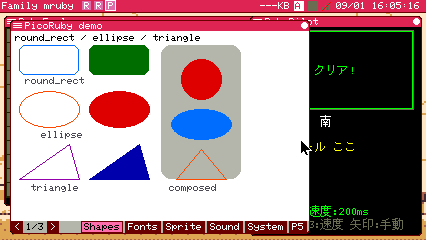
The same desktop, the same apps, in a browser tab
Requirements
- A recent Chrome or Firefox on a PC with a keyboard
- Safari is untested; phones and tablets are not supported (the machine wants a keyboard)
What you can do
- Use the desktop: the top-left menu opens the launcher, the editor, the file manager and the rest; apps run side by side
- Write and run Ruby in the editor, with Japanese input
(
Ctrl+Spacetoggles kana, typed as romaji) - Play the bundled apps and hear the internal sound chip
- Install more from the App Store, which works here as it does on a board
- Play a video: MJPEG runs in the page like it does on Modern
- Pick a screen size up to 852x480 and a zoom — a larger screen means more room, not bigger pixels
- Go full screen. Where the browser allows it the machine keeps
Escfor itself; where it does not,Escleaves full screen instead of reaching the app
Colours are not the page's to choose: pick a theme in Config, inside the machine, as you would on a board. The screen size is applied at boot, so changing it reloads the page.
A link can also start one app: add ?app=/app/game/blockgame.app.rb to the
URL and it opens once, on that visit.
Your files
What you write is kept. /home — the programs you save, your colours, your
service list — and /app/usr, where installed apps live, stay in this
browser between visits, and so do your settings. None of it goes anywhere
else: it never leaves the machine you are reading this on.
Everything outside those two is built fresh every time. Files written
anywhere else, and /tmp above all, are gone on the next reload. If you open
the page twice, only the first tab saves.
The panel under the screen is how files come and go:
| What it does | |
|---|---|
| Add — Files… / Folder… | Copies them into the directory chosen beside the buttons: /home/inbox, any directory you have already made under /home, or /app/usr. Dropping them anywhere on the page does the same thing |
| Work folder — Link a folder… | Follows a folder on your disk: what you change out there arrives in the machine, and Send my work back writes the machine's copy out to it. Where the browser offers it, which today means Chrome and the browsers built on it |
| Backup — Download | Saves all of it, settings included, as one .tar |
| Backup — Restore | Puts that file back, here or in another browser |
| Backup — Erase | Clears both stores and puts every setting back to its default |
Downloading is worth doing for anything you care about: a private window keeps nothing, and a browser may reclaim the space after a long absence.
A dropped folder is installed as an app when it holds an *.app.toml;
anything else lands where you chose, as it is. Nothing is filed by what it
looks like — a .png does not become a wallpaper on its own.
Limits
- The network is the page's.
FmrbNet.requestfetches through the browser, so a server that refuses cross-origin requests cannot be read, and the socket side (Net::HTTP, WebSocket) is not there - This is the Modern-family machine; boards are still where the hardware fun is — see Getting Started