Default Apps
Everything below ships on the device. Open the Launcher from the system menu (or press
L on the desktop) and double-click an icon.
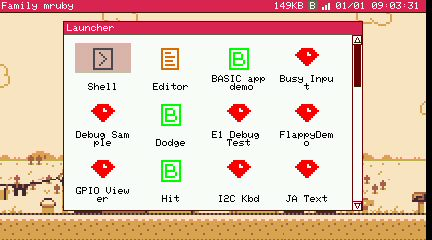
The list is built at boot
The launcher scans for apps once, when the desktop starts. After you add a file, right-click inside the launcher window to rescan.
Apps live under /app, grouped into directories. What follows is grouped the same way.
The samples, sprites, sounds and slide decks they read live under /usr/share; anything
you write belongs in /home.
Always there
The grid opens with three the firmware carries itself — Shell, Editor and the App Store — and the rest are the system's own apps, reachable from the system menu or by pressing a letter on the desktop.
| App | Key | What it does |
|---|---|---|
| Launcher | L |
The app grid |
| Shell | S |
A command line |
| Editor | E |
Write, run (F5) and debug your code |
| App Store | Fetches published apps over Wi-Fi and installs them under /app/usr |
|
| File Manager | Browse the flash filesystem | |
| Log Viewer | The system log | |
| Monitor | Running tasks, memory and services | |
| HID Inspector | I |
Works out the report layout of a misbehaving USB mouse and writes it to /etc/hid_devices.toml |
| NSF Player | N |
The music player, close enough to hand to want a key of its own |
On Modern a service host also runs in the background, holding the resident services. It has no window; the Monitor lists it.
Ruby demos — /app/demo
| App | What it shows |
|---|---|
| PicoRuby demo | Every drawing, font, sprite, sound and P5 feature the Ruby app framework has, one page at a time. The one to read before writing your own |
| Kamon | Generates Japanese family crests from five motifs with rotational symmetry |
| Piano | One octave of the sound chip, played from the keyboard, with the channel and the sweep on a panel |
| Weather | Fetches a forecast over HTTPS and draws it — the network API end to end |
| MIDI APU | Plays the built-in sound chip through the MIDI layer, switchable to an external instrument |
| MML | The same tune on the APU or an external instrument, written as MML text and loaded from a file |
| StackChan | A parametric face with expressions and emotes |
| StackChan Remote | The same face, driven over pub/sub |
| PubDemo / SubDemo | A publisher and a subscriber, to run together |
| LED Matrix | Drives a WS2812B matrix from the GROVE port |
| I2C Kbd | Reads an I2C keyboard |
Python — /app/python
| App | |
|---|---|
| Python demo | The twin of the PicoRuby demo, written in MicroPython: the same pages, the same framework |
| PyBench | What fits in one frame of a Python app — the three costs that decide how a game is written |
BASIC — /app/basic
Programs in FMRuby BASIC, runnable and readable:
| App | |
|---|---|
| BASIC app demo | A BASIC program launched as an ordinary app |
| Shoot | A shooting game |
| Maze | |
| Music | PLAY and BEEP |
Lua — /app/lua
| App | |
|---|---|
| Lua app demo | The app framework from Lua |
Games — /app/game
| App | |
|---|---|
| RPG Demo | A tile world with smooth scrolling, collisions, BGM and sound effects |
| Raycaster | A Wolfenstein-style first-person demo. Keyboard or gamepad |
| BlockGame | With BGM and sound effects |
| Shooter | Sprites, a diving formation, and a boss between the waves |
| Flappy Demo | The one-button game, with scenery behind it |
| Breakout.py | The Python sample game: sprites, tiles, Japanese text, a tune on the main sound chip and effects on the other |
| Robo Explorer | A maze you cannot play directly. The robot takes no keys — it publishes its state and obeys commands that arrive over pub/sub |
| Robo Pilot | The pilot that drives it. The part you write is my_pilot.rb: it gets the keys, a think call five times a second, and every result. There is a Python pilot too |
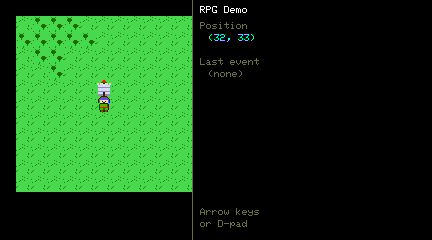
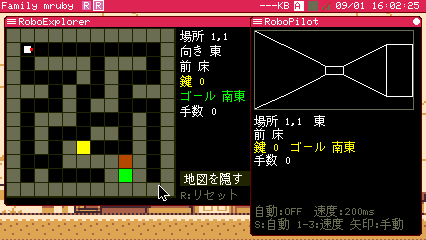
Robo Explorer and the pilot that drives it, talking over pub/sub
Tools — /app/tool
| App | What it does |
|---|---|
| SMF Player | Plays standard MIDI files, with a file list. Songs are in /usr/share/sounds/midi |
| NSF Player | Plays NSF (Famicom sound) files from /usr/share/sounds/nsf |
| Sprite Editor | Edits a 16x16 RGB332 tile sheet: load a BMP, pick a tile, edit pixels, save back |
| PicoRabbit+ | Presents a slide deck written in Markdown, fullscreen. It opens on a list of every deck it can find — yours under /home/slides, the samples under /usr/share/samples/slides, and the SD card — and can write a deck out as one picture per slide |
| GPIO Viewer | Live pin status for every GPIO, colour-coded by what is using it |
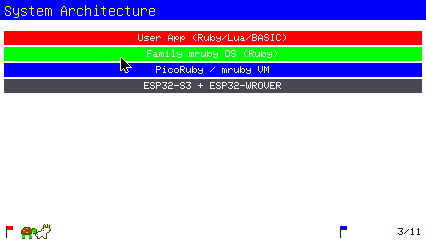
PicoRabbit presenting one of the bundled decks
Modern only — /app/modern
Apps that need hardware only a Modern machine has. They are hidden from the launcher on Retro.
| App | |
|---|---|
| VideoPlay | Plays a Motion JPEG file in a window, picked with the file selector (the SD card is under /mnt/sd) |
| Mic Spectrum | What the microphone hears, as a bar graph. The whole chain is on the machine: the microphone samples, the FFT transforms, the graphics draw. Nothing is recorded and nothing leaves the device |
| IMU | The six-axis sensor as a bubble level, with the raw values beside it |
Test and diagnostic apps
/app/debug and /app/test hold apps that exist to exercise or break something on purpose
— an app that raises, one that fails to compile, one that saturates the input queue, MIDI
timing benchmarks, an NTSC colour chart, a network check, SD card and tile-map checks. They
are hidden from the launcher on every machine, but the files are there: run one from the
editor or the shell when a device misbehaves.
Machine-specific apps
Most apps run on both machines. A few depend on hardware only one of them has:
| App | Note |
|---|---|
| Mic Spectrum, IMU, VideoPlay | Modern only — the microphone, the six-axis sensor |
| NTSC Test | Retro only — it adjusts the composite video output |
| SD Test | Retro only — Modern's microSD is not wired up in the firmware yet |
| Weather, Net Test | Need Wi-Fi configured. See Network |
| LED Matrix, I2C Kbd | Need something wired to the GROVE port |
Related
- Hello World — write your own
- App Config (.app.toml) — how an app gets into the launcher
- File Associations — which app opens which file
- Examples — annotated code