Connecting to Wi-Fi
Both machines can join a network. What it gets you:
- Remote desktop — the device's screen in a browser on your PC, driven by your PC's keyboard and mouse. Modern only
- Networking from your apps —
Net::HTTP, WebSocket and TLS - mDNS — the device answers to a name, so you do not have to hunt for its address
Only 2.4 GHz networks are supported.
What joining a network exposes
None of it is access-controlled. Once the device is on the network, anyone else on that network can open the remote desktop and operate the machine, and anyone in BLE range can read and write its files — no password is involved anywhere. The credentials you write below are stored in plain text on the device.
Use this on a network you trust, and read Security before putting the device on a network you share with strangers.
Write your network into /etc/wifi.toml
Credentials live in a file on the device. Released firmware ships without that file — your network's password is yours, not something that can be baked into a public build — so you create it once, on the device, using the editor.
- Start the Editor: press
Eon the desktop, or open it from the Launcher -
File → Open, and navigate to
/etc/wifi.tomlIf it is not there, type the contents into the empty buffer and use File → Save as with the path
/etc/wifi.toml -
Fill in your network:
```toml [wifi] enable = true ssid = "your-ssid" password = "your-password"
Leave hostname out and the board names itself; see below
```
-
Save, then reboot: system menu → Reset
| Key | Meaning |
|---|---|
enable |
Set to false to keep the credentials but not connect |
ssid / password |
Your network. 2.4 GHz only |
hostname |
The mDNS name, and optional — see below |
The name the board answers to
Leave hostname out and the board makes one of its own: fmruby-XXXXXX.local, where the
six characters are the last three bytes of its Wi-Fi MAC. It is printed in the boot log,
and it is what tells two boards apart on one network.
Every board also answers to fmruby.local, which is the convenient name when there is only
one of them. With two, which one replies is a race — use the board's own name then.
Writing a hostname replaces the generated one, so give two boards two different values if
you do.
Another way in
If you would rather not type on the device, you can push the file from your PC over the web console, which talks to the device over BLE.
Check it worked
After the reboot, open the system menu → Network.
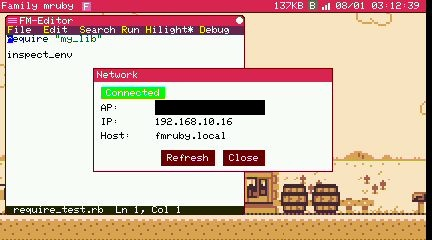
It shows whether the connection came up, the address the device was given, and its hostname. Refresh re-reads the state.
The menu bar also carries a small Wi-Fi indicator, to the left of the clock.
From an app:
if FmrbApp.wifi_connected?
  info = FmrbApp.wifi_info
  Log.info("address: #{info[:ip]}")
end
Retro runs one radio at a time
This is the difference that surprises people.
| Machine | Wi-Fi and BLE |
|---|---|
| Modern (Tab5) | Both at once. The ESP32-C6 handles them together, so the BLE web console keeps working while Wi-Fi is up |
| Retro (narya-board) | One or the other. The ESP32-S3 has a single radio |
On Retro, if BLE started at boot, Wi-Fi will not start — the log says so. To use Wi-Fi
there, open Config in the system menu, set ble_auto_start to off, and reboot. You can
still start BLE by hand later from the system menu when you need the console.
wifi_auto_start in the same dialog controls whether Wi-Fi comes up at boot at all.
When it does not connect
- Check
enable = trueis actually in the file - Check the SSID for typos — it is case-sensitive
- 2.4 GHz only. A 5 GHz-only network will never appear
- On Retro, check BLE is not holding the radio (above)
- Wi-Fi starts after the desktop does, so give it a few seconds before deciding it failed. An
app that needs the network should wait for
FmrbApp.wifi_connected?rather than assume it
Related
- Remote Desktop — the screen in a browser
- Network — the API for your apps
- Modern (M5Stack Tab5)
- System Configuration — every key in
wifi.tomlandsystem_conf.toml - Console — moving files onto the device over BLE