The Desktop
The desktop is the same on both machines: a menu bar across the top, the wallpaper below it, and windows on top of that.
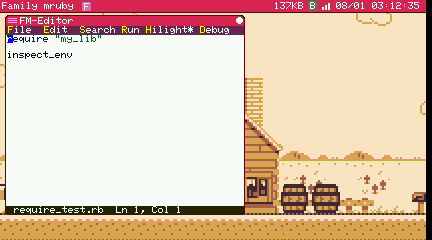
The menu bar
Everything the system wants to tell you lives in this 13-pixel strip.
┌─────────────────────────────────────────────────────────────────────┐
│ Family mruby  ▪▪          137KB  A  B  ▂▄▆   08/07 21:04:11         │
└─────────────────────────────────────────────────────────────────────┘
  ↑             ↑           ↑      ↑  ↑  ↑     ↑
  |             |           |      |  |  |     clock
  |             |           |      |  |  Wi-Fi
  |             |           |      |  BLE
  |             |           |      kana
  |             |           RAM
  |             taskbar
  system menu
Family mruby
Click it for the system menu. See the list below.
Running apps (the taskbar)
Each running app gets a small square, in the order they started, immediately right of the title. This is the taskbar.
It is a list of windows, not of processes: a square is something you can click to bring to
the front and type into. An app with no window — the service host, for one — has nothing to
raise, so it is not listed. ps and the Monitor still show it.
- The letter is the first character of the app's name
-
The colour is the language it runs on:
Colour Language Red Ruby (mruby) Yellow MicroPython Green BASIC Blue Lua Gray Native C -
A white border marks the app that currently has keyboard focus
- Click a square to bring that app to the front and give it the keyboard

Three apps running. The white border is the one with the keyboard
An app parked by Ctrl + Tab (see below) stays in the taskbar
while it is frozen, so you can always click your way back to it.
Free internal RAM
The figure on the right — 137KB in the example — is free internal RAM, not total free
memory. App heaps come from PSRAM, which is plentiful, but each running app also costs about
25 KB of internal RAM, and that is what runs out first. So this is the number that answers
"can I open one more app?".
The Linux simulator has no such limit and shows ---KB.

The right-hand end, enlarged. Free RAM, kana, BLE, Wi-Fi, clock
Kana input
A when you are typing ASCII, あ for hiragana, ア for katakana. Click it to step
through the three. It is there from boot, in every language, because on a keyboard with no
half-width/full-width key — or with no keyboard at all — that click is the way in.
Ctrl + Space does the same thing from the keyboard.
BLE
| Appearance | Meaning |
|---|---|
| Nothing | BLE is off |
Gray box, white B |
BLE is on, waiting for something to connect |
White box, inverted B |
A client is connected — the web console, typically |
On Retro the system menu starts BLE and ble_auto_start in Config decides whether it comes
up at boot; there is no way to stop it again short of a reboot. Modern has the same setting,
and false there means nothing is advertised and nothing can connect — the link to the C6
still comes up, because Wi-Fi needs it.
Wi-Fi
Signal bars, just left of the clock.
| Appearance | Meaning |
|---|---|
| White bars | Connected |
| Gray bars with a red slash | Not connected |
| Nothing | This build has no Wi-Fi |
Click the bars to open the Network dialog, which shows the address the device was given. See Connecting to Wi-Fi.
Clock
Date and time. Set it from Set Clock; the timezone is a separate setting under Config.
The system menu
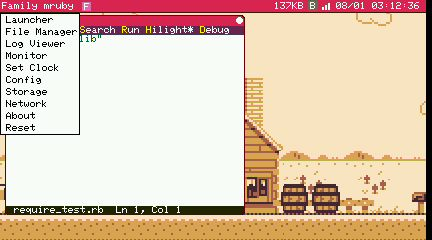
| Item | What it does |
|---|---|
| Launcher | The grid of installed apps |
| Editor | The editor. It is built into the firmware, and heads the launcher grid with the Shell and the App Store |
| File Manager | Browse the flash filesystem |
| Log Viewer | The system log |
| Monitor | Running tasks, memory and services |
| Set Clock | Date and time |
| Config | Language, keyboard layout, pointer speed, theme, wallpaper, timezone, Wi-Fi and BLE autostart, display margins |
| Storage | Clear cached files |
| Network | Wi-Fi state, address, hostname |
| BLE Start | Retro only, and only when BLE did not start at boot |
| Shortcuts | Every key that works here, in one list |
| About | Version and chip information |
| Reset | Reboot |
Whatever Config changes is written back into /etc/system_conf.toml, keeping your
comments and other settings intact. On hardware the dialog offers Save & Reboot for the
settings that only take effect at startup.
What happens before the desktop
Power-on shows the logo and plays a short jingle, and then the desktop comes up. That
ceremony is boot_splash in /etc/system_conf.toml;
setting it to false skips both and saves about 2.7 seconds, which is worth having on a
machine built to run one thing. Nothing else changes — the cursor, the status LED and the
startup app all happen either way.
startup_app beside it names one app to open as soon as the desktop is ready, by the same
path the launcher uses. Empty means the ordinary desktop. A fullscreen app named there
takes the screen without the desktop showing first. Neither setting is in the Config
dialog: edit the file in the Editor.
The launcher
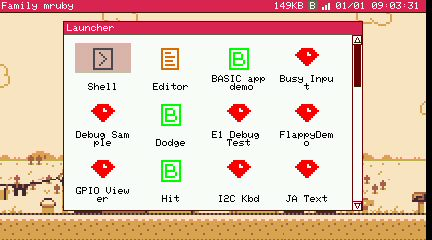
Double-click an icon to start an app. Arrow keys move the selection and Enter starts it.
The list is built once, at boot
The launcher scans the filesystem when the desktop starts. After you add an app, right-click inside the launcher window to rescan — otherwise your new app will not appear until the next reboot.
Windows
| Action | How |
|---|---|
| Move | Drag the title bar |
| Focus | Click anywhere in the window, or click its taskbar square |
| Close | The button in the title bar, or Ctrl + Q |
| Resize | Drag the corner — only for apps that declare resizable |
A click is decided on release, with a small movement tolerance, so a slightly shaky press does not turn into a drag.
Scrolling
The mouse wheel scrolls the editor, the shell, the log viewer, the launcher and the file dialogs. It goes to the window that has the keyboard, not to the one under the pointer, so it behaves like a key rather than like a click.
In the simulator, in Studio and over the
remote desktop it needs nothing. On a board a USB mouse has to be
named in /etc/hid_devices.toml before its
wheel does anything — plug the mouse in and the log prints the line to add.
Keys
Always
| Key | Effect |
|---|---|
Ctrl + Q |
Close the app in the foreground, including a fullscreen one |
Ctrl + Tab |
Switch between the desktop and the running apps |
Ctrl + , |
The same thing. A browser keeps Ctrl + Tab for its own tabs, so Studio needs this one; it works on the boards too |
Ctrl + Space |
Turn kana input on and off |
These are handled before the event reaches any app, so they work even when a fullscreen app has the whole screen.
On the desktop
With no app focused and no dialog open, a single letter starts an app:
| Key | Starts |
|---|---|
L |
Launcher |
S |
Shell |
E |
Editor |
N |
NSF player |
I |
HID Inspector — see HID Device Config |
That list is the [[shortcuts]] section of /etc/system_conf.toml. Add your own by naming
the app's path. The Shortcuts entry in the system menu shows the list a machine actually
has, read from its own configuration.
The menu bar answers to the keyboard too:
| Key | Effect |
|---|---|
F10 |
Open the system menu with the first entry picked |
↑ ↓ Home End |
Move the selection. It wraps at both ends |
Enter |
Run the entry |
Esc or F10 |
Close the menu |
The highlight is the same one the mouse moves, so the two ways of driving the menu cannot disagree about what is selected.
Switching between apps
Ctrl + Tab does one of two things, depending on what is in front.
Windowed apps: cycle
It moves round-robin through the desktop and the running apps — the desktop first, then the
apps in the order they started. Whatever it lands on comes to the front and takes the
keyboard, so you can Ctrl + Tab from the editor to your app, type into it, and
Ctrl + Tab back to keep editing.
The desktop is a stop on that ring because its menu bar and its letter shortcuts only answer while it holds the keyboard. Without it, starting one app meant the menu could only be reached with the mouse. While a fullscreen app is up the desktop is suspended and drops out of the ring.
A fullscreen app: park it
Pressing Ctrl + Tab inside a fullscreen app parks it: the app freezes where it is, its
canvas is hidden, and the desktop comes back. Its state and canvas are kept, so cycling round
to it again — or clicking its taskbar square — restores the screen it had, without a redraw
and without losing your place.
An app has to opt in
Only an app that declares fullscreen_switchable = 1 in its
.app.toml can be parked. Others ignore Ctrl + Tab
while fullscreen.
The declaration means "it is fine to freeze me mid-run". An app that leaves the sound chip playing should not declare it: frozen or not, the sound keeps going.
The bundled presentation tool, PicoRabbit, declares it — so you can leave a slide, go do something else, and come back to the same slide.
Related
- Modern (M5Stack Tab5) / Setup (Retro)
- Default Apps — what is in the launcher
- System Configuration — what Config writes, and everything it does not offer
- App Config (.app.toml) — how your app declares its window
- Connecting to Wi-Fi