Family mruby Console
A browser-based client that reaches the board over Bluetooth Low Energy: files, live logs, sprite and map editing, and a debug panel. Nothing to install.
Requirements
- A PC capable of BLE communication
- Web Bluetooth compatible browser (Chrome / Edge) (Firefox / Safari are not supported)
Starting the Client
Open the following URL in your browser.
https://family-mruby.github.io/console/
Connection Procedure
- Turn on the board and wait for startup to complete (a few seconds)
- Open the client in your browser
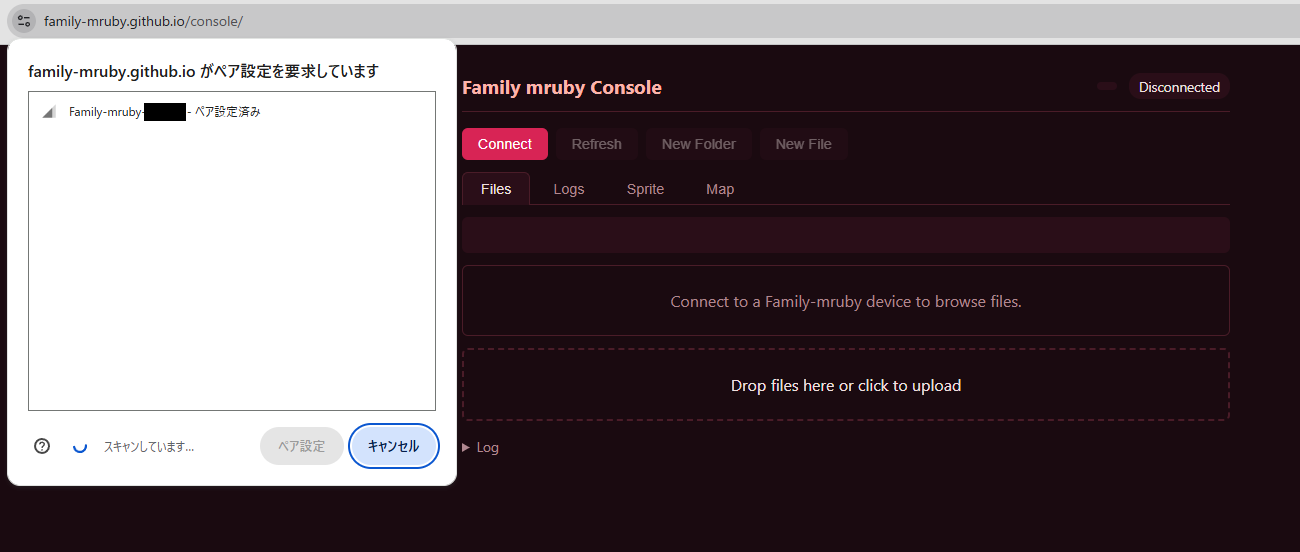
- Click the "Connect" button on the screen
- Select "Family-mruby-XXXXXX" from the browser's BLE device selection dialog
- Press the "Pair" button (on some operating systems this may appear as "Connect")
The BLE link is open to anyone in range
The device does not pair, bond or encrypt — that is what keeps Web Bluetooth working on
Windows, and it also means the connection asks nothing of whoever makes it. Anyone with a
browser in radio range can read and write the files on the board, read its log, and start
or stop apps. On Retro you can keep BLE off at boot with ble_auto_start in Config; on
Modern it always starts and cannot be stopped while the machine is on. See
Security.
If you have trouble connecting on Windows
The Windows Bluetooth stack may retain old pairing information and prevent connection. Try deleting the existing Family-mruby-* entry from the OS Bluetooth settings and then reconnecting (this device does not retain pairing information).
Uploading Files (PC to Board)
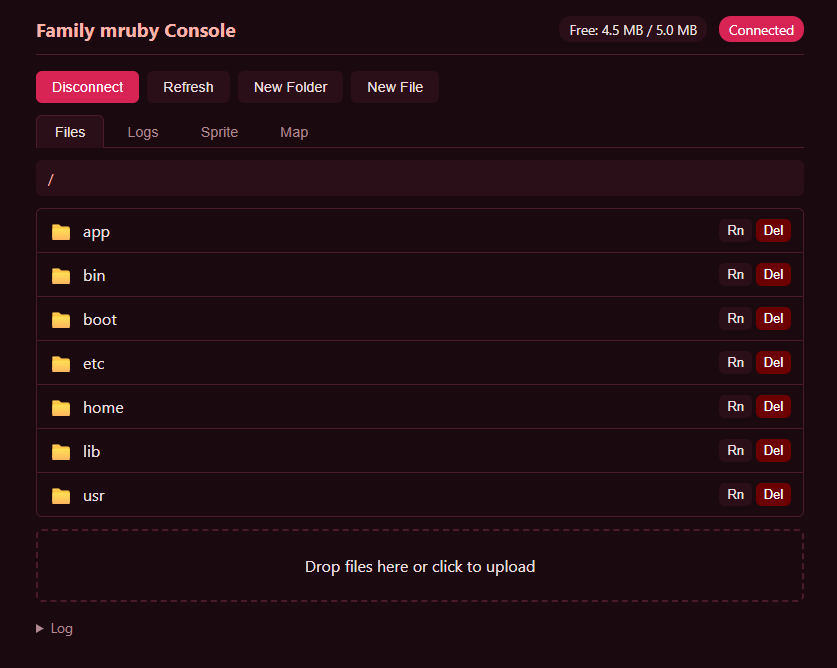
- Navigate to the destination directory in the client
- Drag and drop files from your PC's file explorer into the browser
- Wait for the transfer to complete
Downloading Files (Board to PC)
- Display the file in the client
- Click the download icon
- Specify the save location in the standard file save dialog on your PC
Applying Uploaded Files
After uploading app files (.app.rb / .app.toml) to /app/<dir>/, they will not appear in the launcher immediately. You can apply them using either of the following methods:
- Open the launcher and right-click — the title bar will show "Rescanning..." and new apps will appear within 1–2 seconds
- Restart the device — apps are automatically picked up during the startup scan
For details, see Hello World > Applying in the Launcher.
What the client can do
Five tabs across the top:
| Tab | What it is for |
|---|---|
| Files | Browse the flash filesystem. Upload by dropping files, download, rename, create and delete files and folders |
| Logs | The device's log, streamed live, with a substring filter |
| Sprite | Edit RGB332 sprite sheets in the browser and write them back |
| Map | Edit tile maps |
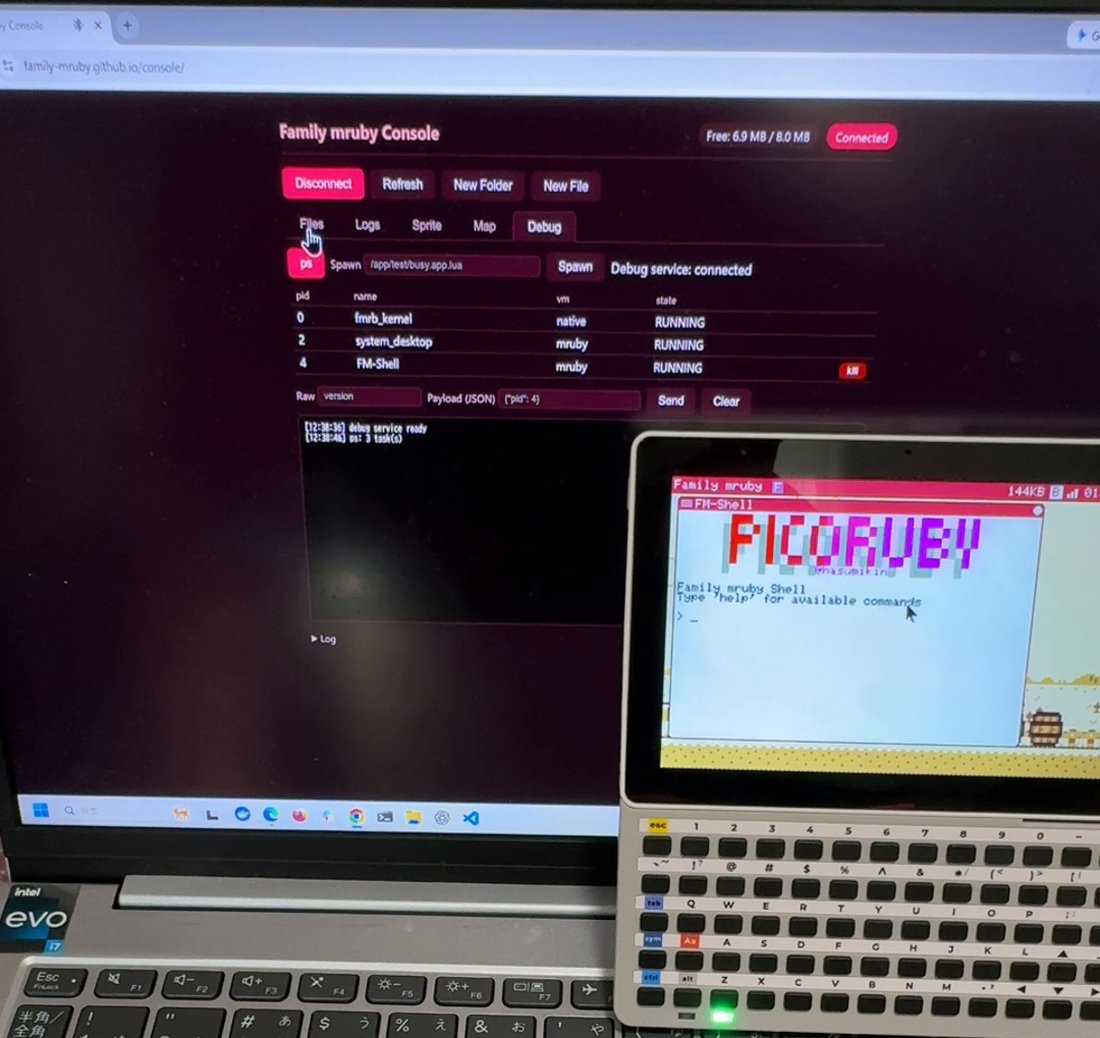
| Debug | List running apps (ps), kill one, spawn another by path, and send raw debug commands |
The Debug tab talks to the same debug service the remote debugger uses, so it is the quickest way to stop an app that has stopped responding — no breakpoints, no session.
Both machines
The console works on Modern as well as Retro; on Modern, BLE runs on the ESP32-C6.
The difference is what else can run at the same time. Modern's C6 handles BLE and Wi-Fi together, so the console and the remote desktop both work. Retro's ESP32-S3 has one radio, so BLE and Wi-Fi are a choice — see Connecting to Wi-Fi.
If the device does not appear in the browser's dialog at all, BLE may not be running. Check
ble_auto_start in Config, or start it by hand from the system menu (Retro only -- on
Modern BLE always starts at boot).
Notes
Large Files
Communication speed is not very fast, so large files will take time to transfer.
Simultaneous Connections
Only one client can be connected at a time. If you want to connect from another browser, disconnect the current one first.
Troubleshooting
Device Not Found
- Check that the board is powered on
- Restart the board and wait a few seconds
- Check whether another browser or tab on the OS is already connected
Connect Button Does Not Work
- Are you using Chrome / Edge? (Firefox / Safari are not supported)
- Are you opening the client via HTTPS or
localhost?
Related
- Where to transfer your custom apps: Hello World
- File system structure: Files & I/O
- Stopping a misbehaving app: Debugging